
Ever open an interview invite and wonder, "Wait, is that 2 PM my time or 2 PM their time?" You're not alone. Time zones can feel like a small thing until they're the reason someone shows up to a call three hours early (or late). The good news: your ATS follows one simple rule everywhere, and once you know it, every date and time in the system starts to make a lot more sense.
This article walks through that rule, how to fix your own settings in under a minute, and exactly what time zone you'll see in each part of the ATS.
The one rule to remember
Behind the scenes, every date and time in the ATS is stored in UTC (Coordinated Universal Time). What you see on your screen, though, is converted just for you. The system decides which time zone to display using a simple order of priority:
- Your profile time zone. If you've set a time zone on your own user profile, that always wins.
- Company time zone. If your profile doesn't have one set, the account's Company Info time zone is used instead.
- UTC. If neither is set, times fall back to UTC.
One handy side effect of this: two teammates on the same account can look at the exact same event and see two different clock times, because each of you is viewing it in your own time zone. That's expected, not a glitch.
Fixing it yourself in under a minute
If your times look off by a few hours, it's almost always your profile time zone. Here's how to check and update it:
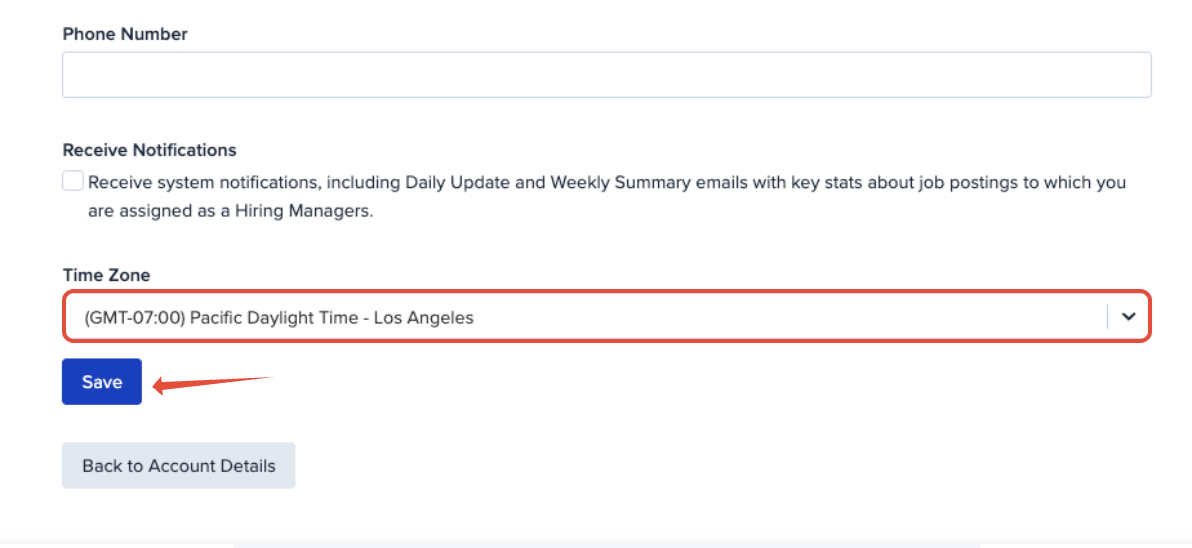
- Use the Main Menu (☰) to select Account > My Profile.
- Find the Time Zone field and set it to wherever you actually are.
- Save your changes.
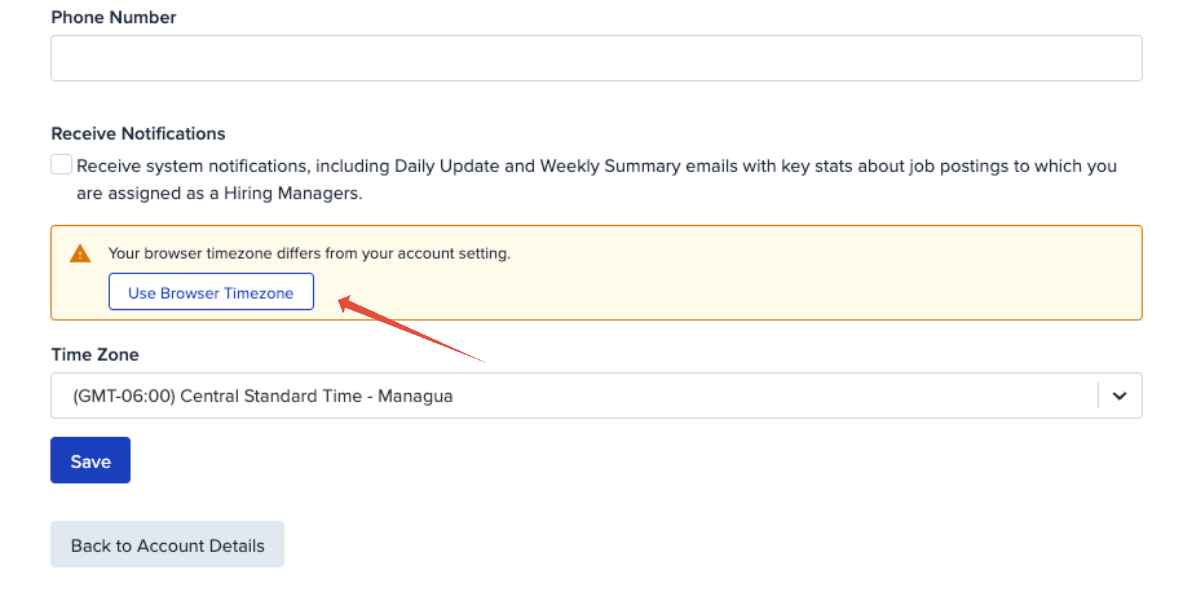
Bonus tip: if your computer's clock is set to a different zone than what's saved in your profile, you'll see a banner on that page reading "Your browser timezone differs from your account setting," with a one-click Use Browser Timezone button to fix it instantly.
 A quick note for anyone managing new hires: your personal setting always overrides the company one. So if a new team member says their times look wrong, the first place to check is their own profile, not the Company Info page.
Where the settings live
There are two time zone settings that drive almost everything in the ATS:
- Your zone: found under My Profile → Time Zone, a searchable list of world time zones. This is the setting that controls what you personally see almost everywhere in the app.
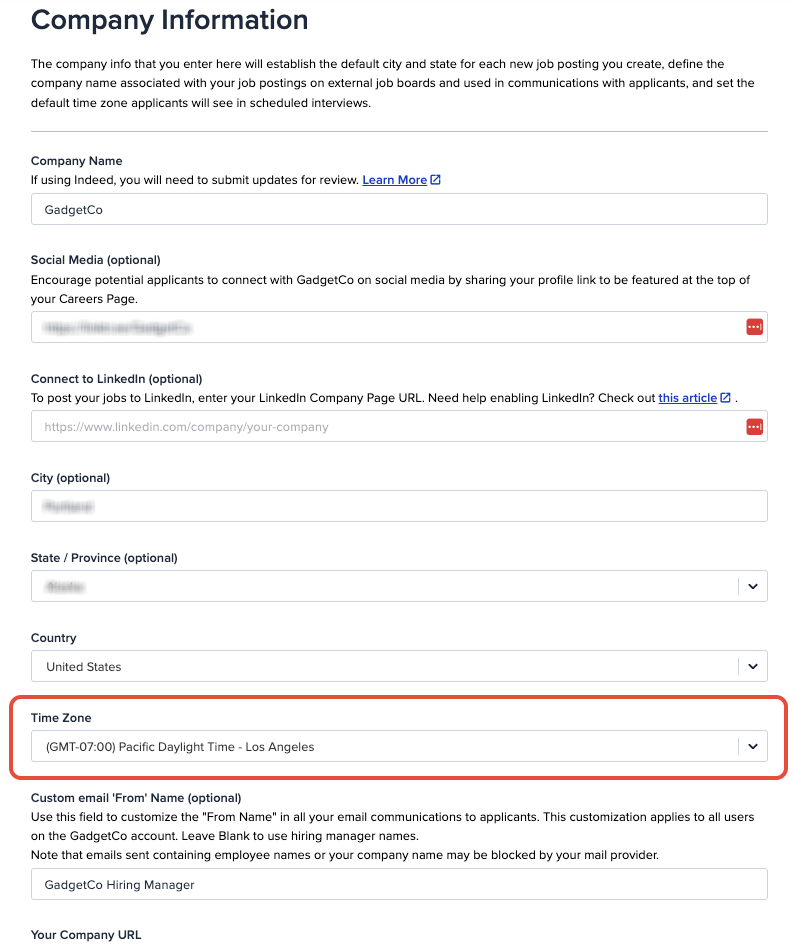
- Company zone: found under Account → Account Details → Company Info → Time Zone (admins only). This is the account-wide default used for anyone who hasn't set their own, and it also seeds the default interview template.
A couple of things worth knowing:
- A brand-new account and its owner both start out in UTC — there's no guessing based on location, so be sure to set both after signing up.
- A teammate you invite doesn't get a personal time zone right away. They'll see everything in the company zone until they set their own on their profile.
Messages and the activity feed
Your own profile time zone is the standard here, applied consistently:
- In an applicant's Messages panel, the sent time on each message, the message list, and the quoted "On ... wrote:" header when you reply are all shown in your profile zone.
- The applicant Activity table's Date column uses the same conversion.
- When an applicant replies by email, the time recorded is when the ATS received and processed that reply (converted to your zone) — not the timestamp from the applicant's own email program. In practice, these usually match within seconds.
Worth noting: this timeline is recruiter-facing. Applicants don't see it — they get ordinary emails, so the time they see is whatever their own email program displays, which is outside the ATS's control.
Audit log
The Audit Log's Date column also converts everything into your own profile time zone. A couple of details to keep in mind:
- Formatting happens when the page loads, so if you change your profile time zone, refresh the Audit Log to see entries update to the new zone.
- Two admins with different profile zones will each see the same logged event shown at their own local time. Same event, same moment — just displayed differently for each person.
Interviews and scheduling
This is one area where the rule works a little differently, because an interview carries its own time zone.
- When you schedule an interview, that one time zone is what appears on every invitation, cancellation, and reschedule email — for the candidate and the interviewer alike.
- When you open the scheduler, the Time Zone field defaults to your own profile zone, but you can change it — handy when you're interviewing a candidate in a different part of the world.
- Everyone who receives the email sees the exact same clock time and zone label. Emails don't re-convert to each person's individual zone; it's one shared, clearly labeled time.
- The calendar (.ics) file attached to the invite is a little different: it's a plain point in time, so each person's calendar app displays it in their own device's zone. That's standard calendar behavior.
Because of that last point, the wording in the email (say, "2:00 PM Eastern") and the entry that shows up in someone's personal calendar app can look different if their device is set to another zone. Both are correct — they're just the same moment shown two ways. It's a good habit to double-check the Time Zone field right before confirming any interview.
Calendar and date pickers
The interview Calendar grid, the "Meeting Details" popup, and the dashboard's Scheduled Interviews card all read times from your computer's clock, not your profile setting. Report date-range pickers (the "Custom Range" calendar) are date-only, so no time-of-day or zone is attached to your selection there.
For most people, the computer clock and the profile zone match, so this is invisible day to day. If you're traveling or using a shared machine whose clock is set to a different zone, the calendar can look out of step with the rest of the app — simply correcting the computer's clock will resolve it.
Offer letters
- The offer-letter CSV export shows every date in the time zone of whoever ran the report, correctly converted throughout.
- An offer's expiration is a calendar date, and the offer stays open through the end of that day in the company's time zone.
- Start Date, Offer Date, and any date-type custom fields in the letter body are plain dates with no time of day attached, so no zone conversion applies to them.
Because expiry is anchored to the company's end-of-day rather than the candidate's local time, a candidate far to the west or east of your company might find an offer closes at a local clock time that doesn't match a quick glance at the calendar. If timing is tight on an offer, it's worth giving candidates a little buffer.
Reports and exports
The Offer Letters report — including columns like Hired Date, Start Date, and the per-note dates inside the Notes column — is converted to the time zone of whoever ran the report.
One exception worth knowing: billing and purchase reports are always shown in a fixed US Pacific business time zone by design, regardless of your company's time zone setting.
Emails and notifications
Interview emails always state the interview's chosen time zone clearly, with a zone label (for example, "EST"), so there's no ambiguity for candidates or interviewers.
The in-app Notifications panel on your dashboard shows date-only entries in the company's time zone (the same for everyone on the account). Since these entries are date-only, this mostly only matters right around midnight.
Careers site and applying
Public job pages don't display a "posted on" date or a deadline to candidates on the standard theme, so there's little for a candidate to misread there.
When a candidate applies, the Date Applied is recorded the moment the application is submitted — the candidate's own device zone is never used for this. Recruiters then see that date and time in their own profile zone, just like everywhere else in the ATS.
Time zones are one of those things that quietly do the right thing until they don't — and now you know exactly where to look if something seems off. If you run into a date or time that doesn't add up, or you just want a second pair of eyes on your settings, our support team is always happy to help. Reach out any time.
