

Interview Automations help streamline your scheduling process by automatically sending interview invitations when an applicant reaches a designated status. This improves response time and provides a consistent experience—no need for manual outreach.
How It Works
Interview Automations pair an applicant status (e.g., “Interview – Schedule Needed”) with a Schedule Interview Template, which defines the interview settings. Once the automation is assigned to a job, applicants moved to the selected status on that job will automatically receive an interview invitation.
Example: Move an applicant to “Ready to Interview,” and they’ll instantly receive your pre-set interview invitation.
You can assign multiple automations to a single job, and each automation can also be applied to multiple jobs.
Requirements:
- Connected Calendar – The organizer (person hosting the interview) must have their calendar connected.
- Schedule Interview Template – This template defines key interview settings like duration, availability, location, and more.
Key Features
- Automatically triggers based on applicant status
- Uses a default interview invitation template (which should not be deleted)
- Hiring managers can create and assign their own templates
- Requires the organizer to have a connected calendar
- If the organizer’s calendar becomes disconnected or they’re removed from the account, the automation will no longer function
Setting Up an Interview Automation
- Navigate to Automation Settings
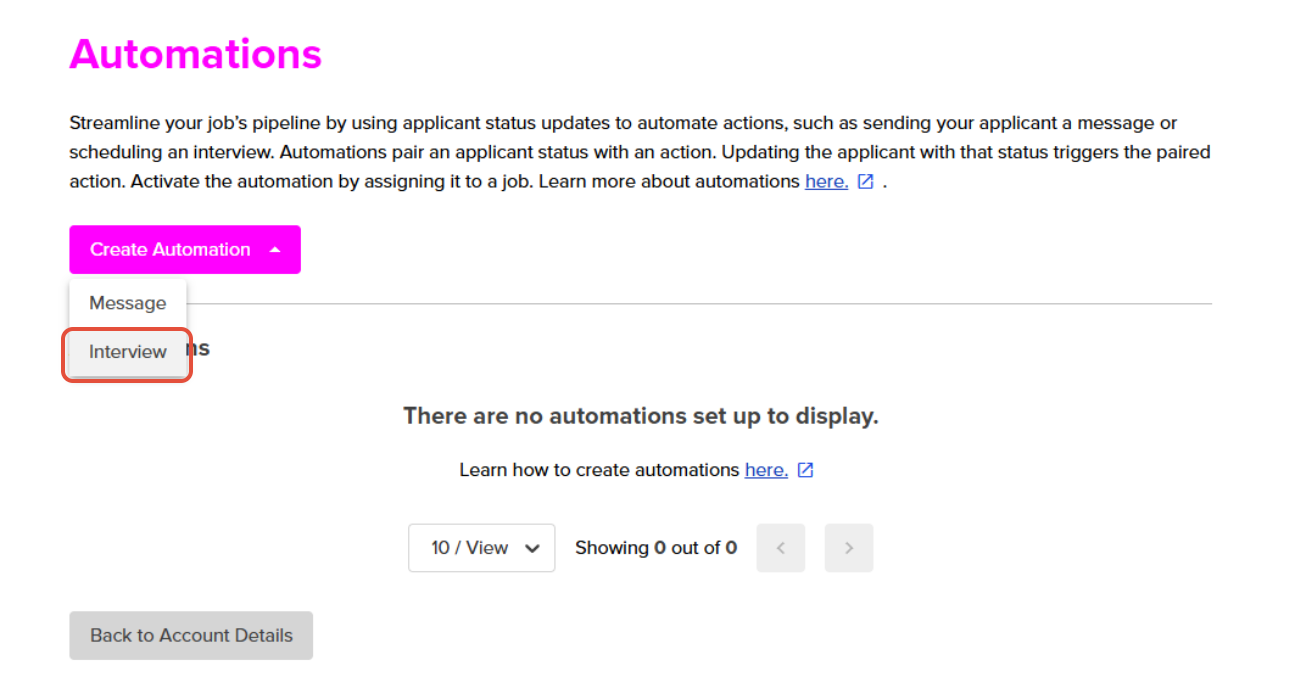
Go to: Account Details > Customize & Design > Automations - Click “Create Automation” and then select the Interview option from the drawer.
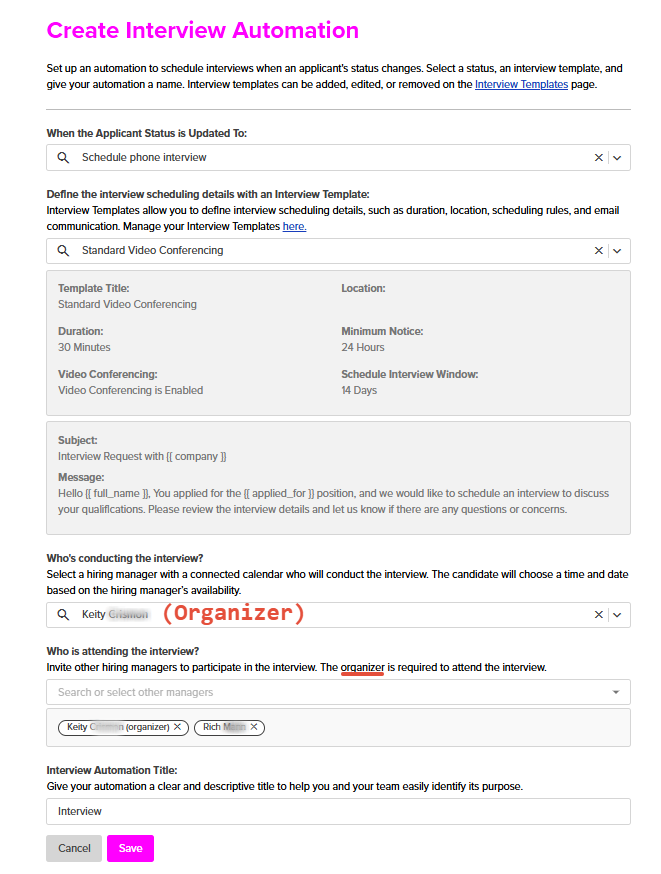
- Select the applicant status that will trigger the interview invitation.
- Assign an Interview Message Template
- The system provides a default template—this should not be deleted.
- You may create or select a custom template if preferred.
- Select an Organizer
- Choose a hiring manager with a connected calendar.
- If the calendar is not connected, the organizer will be prompted to connect it.
- If the organizer’s calendar is disconnected or they are removed, the automation will stop working.
- Assign to Job(s)
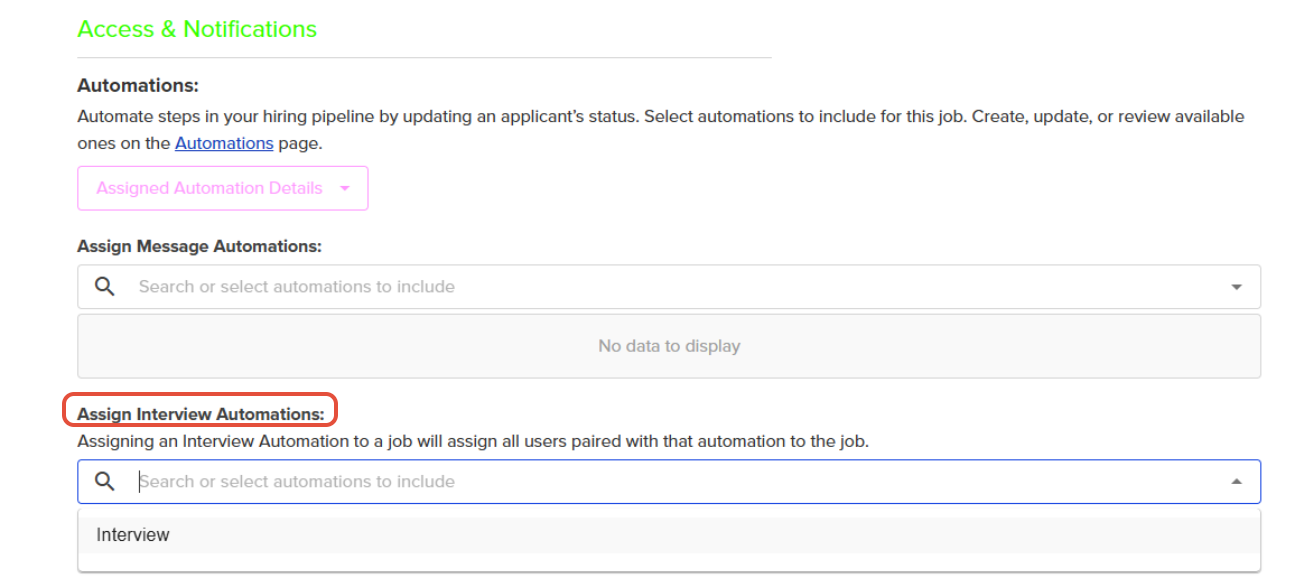
- Once have created the Interview Automation you can now assign it a job.
- Navigate to Access & Notifications and select the automation you wish to use from the Assign Interview Automations drop-down.
- Save the Automation and if your job posting is complete simply select Publish and Continue
Important Notes
- One organizer per automation: Each automation supports only one calendar-linked organizer.
- Template integrity: Do not delete the system’s default interview message template.
- Automation interruption: If the organizer is removed or loses calendar access, the automation will stop functioning.
