
If you noticed a change to your LinkedIn job campaign — new pricing, a different budget, or a request to connect your LinkedIn Company Page — here's what happened and why.
The Short Version
LinkedIn retired its Daily and 30-Day slot campaigns and replaced them with a new Pay-for-Performance (P4P) model. If your campaign was set to auto-renew, it automatically transitioned to P4P. LinkedIn Limited also became easier to access — it's always been a free feature, but it now activates automatically as long as your LinkedIn Company Page is added to your account.
Why Did This Happen?
This change came from LinkedIn, not from us. LinkedIn made the decision to move everyone to P4P — a cost-per-click model. This affected every client who was running a Daily or 30-Day LinkedIn campaign, not just your account.
What Is LinkedIn P4P?
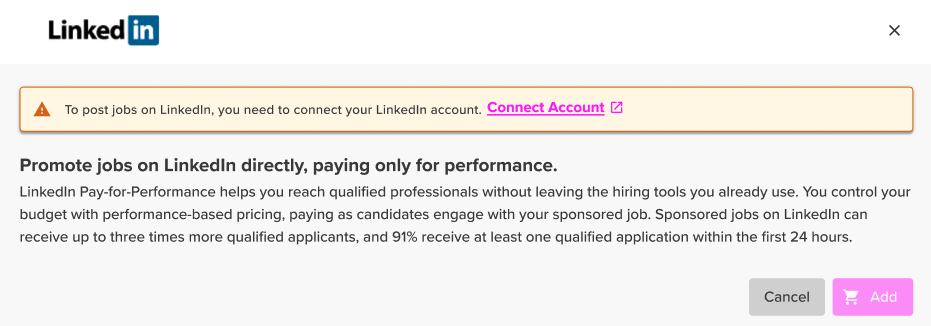
LinkedIn P4P is a cost-per-click campaign — you're paying for engagement, not just airtime. Here's how it works:
- You choose a fixed budget: $299, $399, or $549.
- That budget is only spent when a candidate clicks Apply on your job.
- The campaign runs until the budget is fully spent or 30 days pass — whichever comes first.
- Heads up: LinkedIn's Express Apply isn't part of this. Clicking Apply sends candidates to your career page to complete their application, not to an in-LinkedIn form.
Budgets are use-it-or-lose-it — unspent funds expire at the end of a campaign and don't roll over or convert to a credit, even on renewal. For example, if a campaign has $25 left over and renews at the $299 tier, the new campaign starts at a clean $299 — not $324.
What Happened to Your Campaign
If you had a Daily campaign:
- It moved to the $549 P4P tier — about $30 less than what a full month of Daily typically cost.
- You were charged $549 on July 31 when the new P4P campaign began.
If you had a 30-Day campaign:
- It moved to the $399 P4P tier — the same price point as your previous 30-Day campaign, so no change in cost there.
- The key difference going forward: your campaign is no longer guaranteed to run the full 30 days. If your budget gets spent faster than expected — say, your job posting is a hit — the campaign will end early rather than run out the clock.
If your campaign was canceled before July 31, it did not migrate to P4P.
Connecting Your LinkedIn Company Page
To sponsor jobs through P4P — or have jobs post organically to LinkedIn — you'll need a verified LinkedIn Company Page URL connected to your account. Think of it as LinkedIn wanting to confirm it's really you before it lets your jobs in the door.
To connect your LinkedIn Company Page:
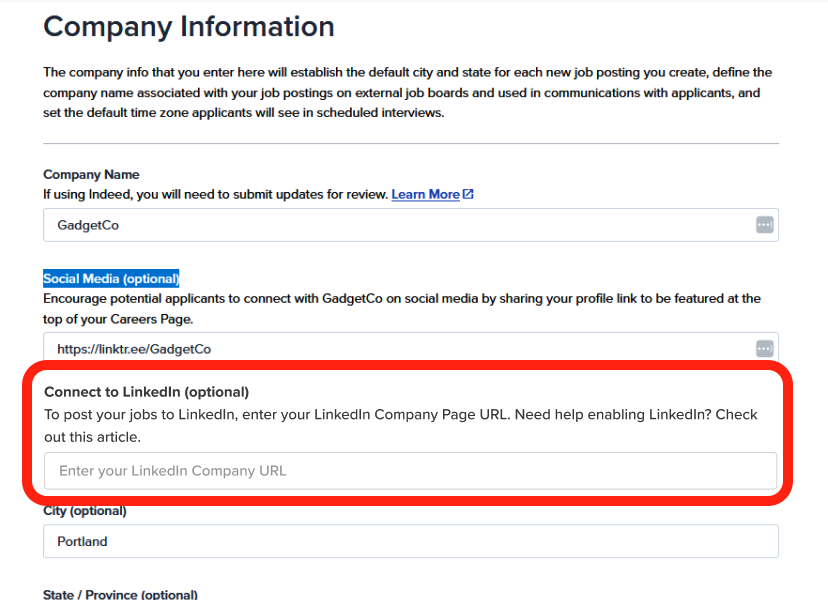
- Use the Main Menu (☰) to select Account > Account Details > Company Information.
- Find the Connect to LinkedIn field and enter your LinkedIn Company Page URL.
- Click Save.
A couple of things to know:
- You'll need the Manage Account Details permission to see this page. If it's not showing up for you, ask your account admin to grant that permission or update the field on your behalf.
- Don't have a LinkedIn Company Page yet? You'll need to create one first. Once it's live, grab the URL and drop it into the field above.
- We may have already filled this in for you. If your account had an active LinkedIn campaign, we pre-populated this field to make the transition smoother. Please double-check it's accurate — this URL determines where your jobs get posted going forward.
Multi-Site Accounts
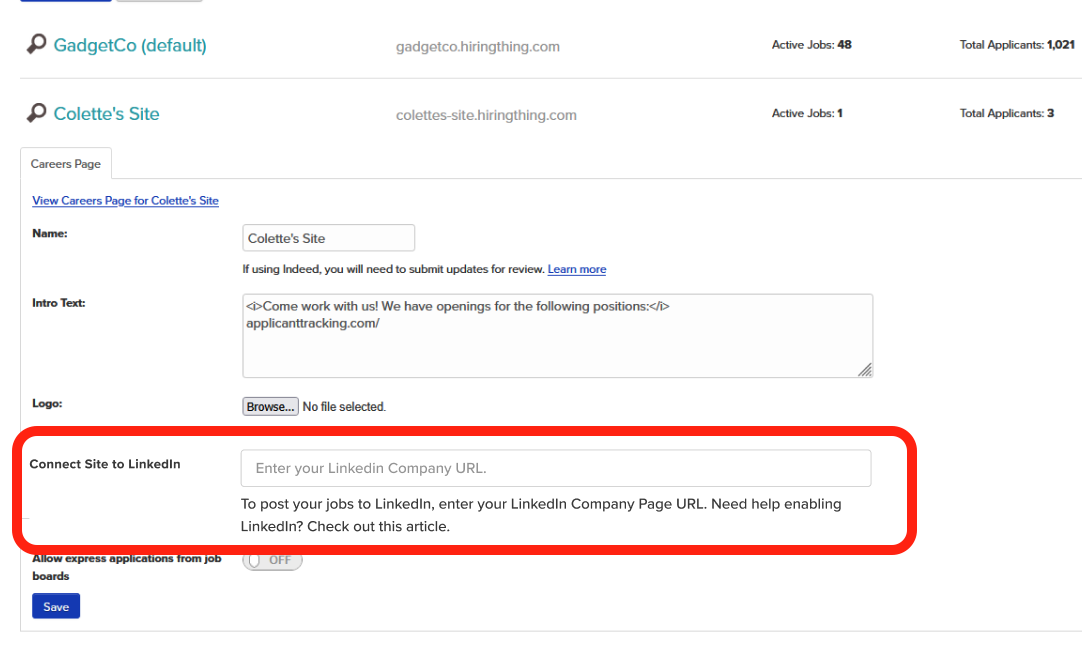
By default, every site under your account uses your parent company's LinkedIn Company Page. If a specific site needs to post under a different LinkedIn page:
- Use the Main Menu (☰) to select Account > Site Management.
- Select the site that needs its own connection.
- Enter that site's unique LinkedIn Company Page URL.
 What About LinkedIn Limited?
LinkedIn Limited has always been a free feature — it previously just needed to be added from the shopping cart like any other job board. That extra step is now gone. As long as your LinkedIn Company Page is connected under Company Information, your jobs are automatically eligible to post there at no cost.
- If you'd rather your jobs not post to LinkedIn Limited, remove the LinkedIn URL from your Company Information page.
- Only want to exclude a specific job? Add
#LI-DNIto that job's description, and LinkedIn's systems will skip it.
Tracking Your Spend
You can check exactly how much of your P4P budget has been spent — and how much is left — from the Download section of your account. Just keep in mind the data can be up to 4 hours old, so treat it as "recent" rather than real-time.
Frequently Asked Questions
Why was I charged $549 for what used to be a Daily campaign?
Active Daily campaigns set to auto-renew moved to the $549 P4P tier, which LinkedIn chose because it closely matches — and is actually about $30 less than — a typical full month of Daily. That charge reflects the new fixed P4P budget, not a continuation of your old daily rate.
Can I choose a different budget tier than the one I was migrated to?
No, not right away. If you end your current campaign, the use-it-or-lose-it clause takes effect, which won't make anyone happy. You'll want to make that change at the end of the 30-day posting.
Why didn't my unused budget carry over?
LinkedIn P4P budgets are use-it-or-lose-it — leftover funds expire and don't roll into the next campaign, even on renewal.
Can I get a refund for unused budget?
Unfortunately, no — this applies to both the retired Daily/30-Day campaigns and the current P4P campaigns.
My campaign ended before 30 days were up. Why?
That's expected with P4P. The campaign ends the moment its budget is fully spent, even if fewer than 30 days have passed. You can check exact spend timing in your LinkedIn report under the Download section.
I got an email or dashboard notice about this — was it legitimate?
Yes, that was an official notice about the July 31 migration. Reach out if you'd like a walkthrough of what it meant for your account specifically.
Have questions about how this affected your account or campaigns? Our support team is always happy to help you sort through the details — just reach out and we'll get you squared away.
