
Plans change — maybe the role got restructured, maybe a stronger candidate came along, or maybe the offer just needs a do-over. Whatever the reason, rescinding an offer letter in the Applicant Tracking System (ATS) is now a built-in, no-workaround-required feature. Here's how to do it cleanly and professionally.
Step-by-Step Instructions
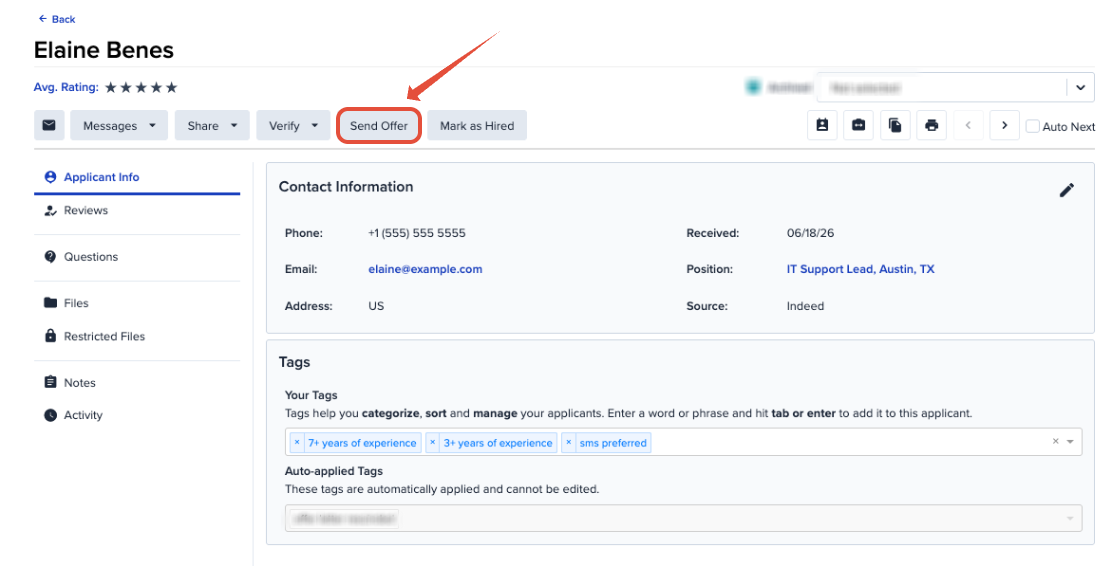
- Navigate to the applicant's profile in the ATS.
- Click Send Offer. This reopens the Offer Letter wizard for the offer that's already been sent.
- At the bottom of the wizard, you'll see three options: Back (to make edits), Rescind, or Send Again.
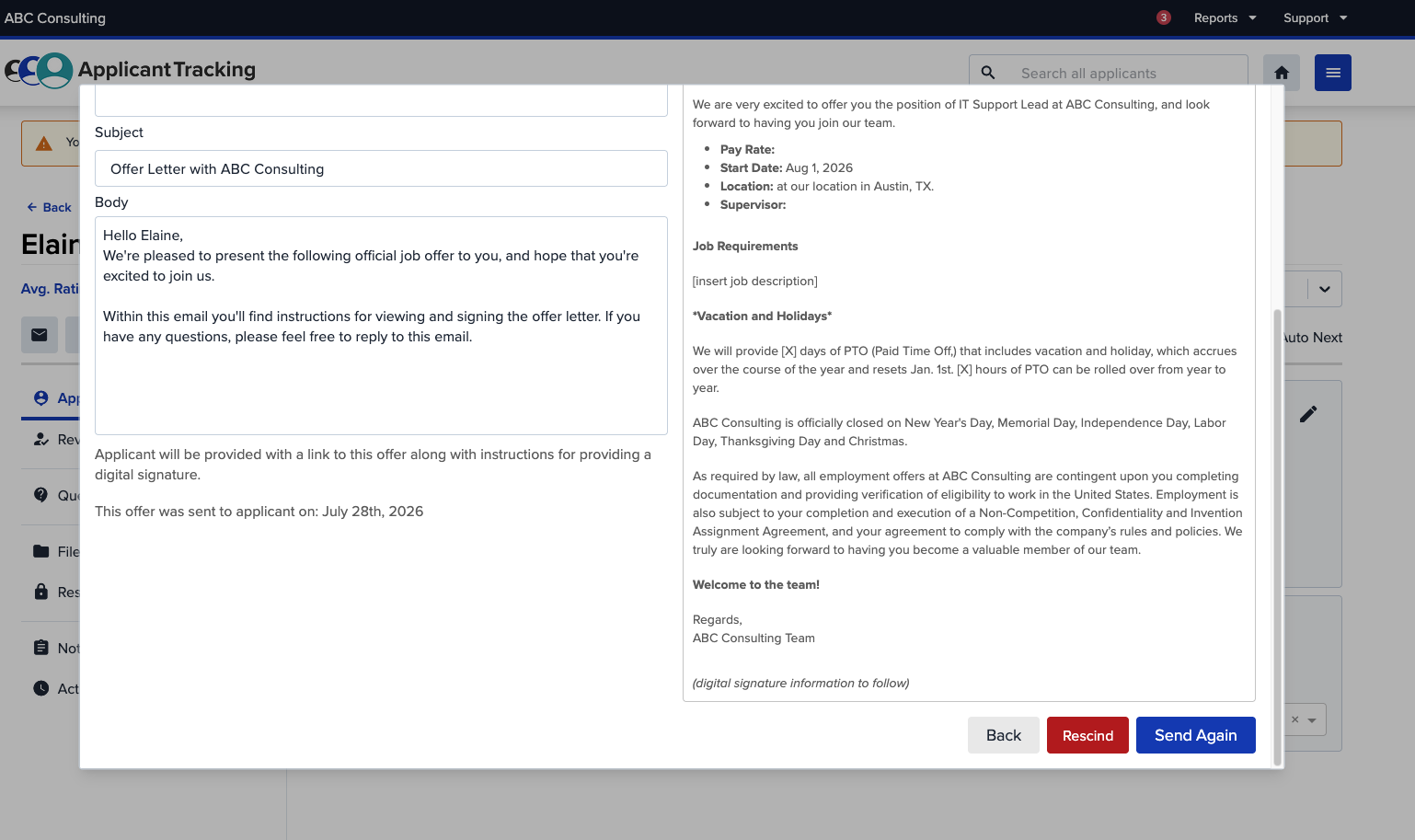
- Click Rescind.
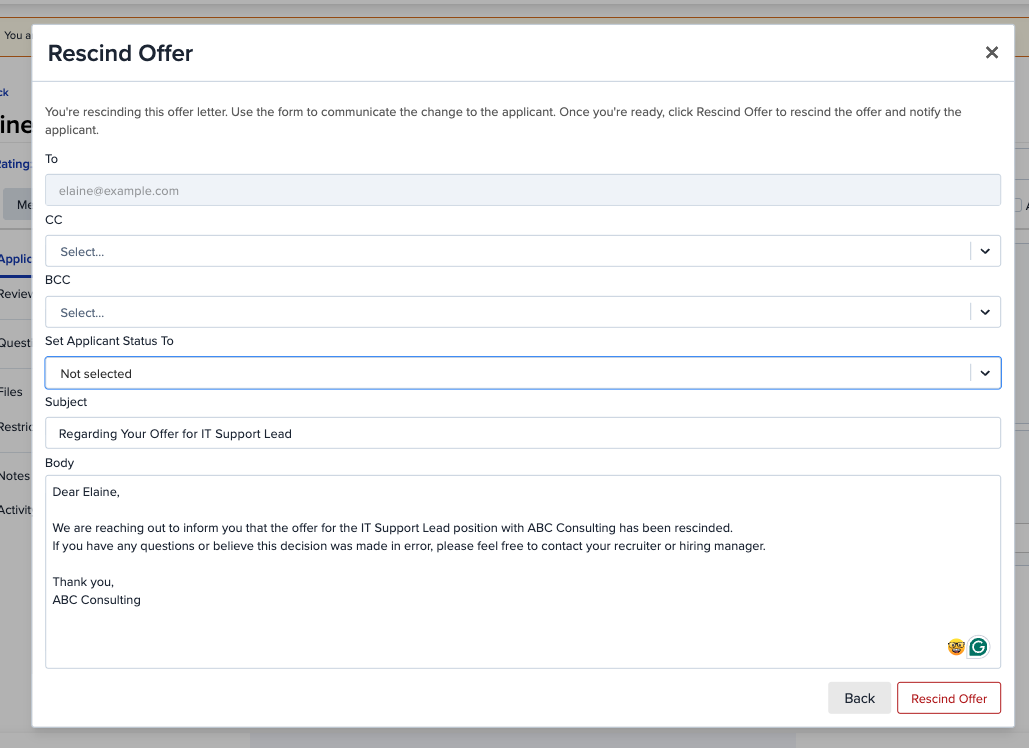
- Use the form to let the applicant know what's changed. You can customize:
- CC and BCC recipients
- NOTE: CC and BCC emails used here need to be associated with users on the Company Manage User page. You cannot currently send to someone who is not an ATS user on your account.
- Set Applicant Status To — choose the status that best reflects where things stand
- Subject — pre-filled, but editable
- Message body — also pre-filled, also editable, so you can add a personal or explanatory note
- CC and BCC recipients
- When you're ready, click Rescind Offer. This finalizes the rescission and automatically sends your message to the applicant — no separate notification needed.
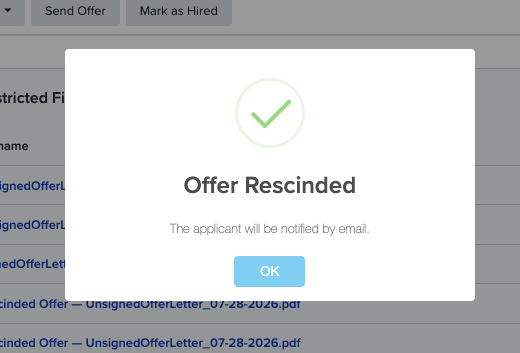
- You'll see an Offer Letter Rescinded confirmation pop-up once the process is complete, letting you know it went through.
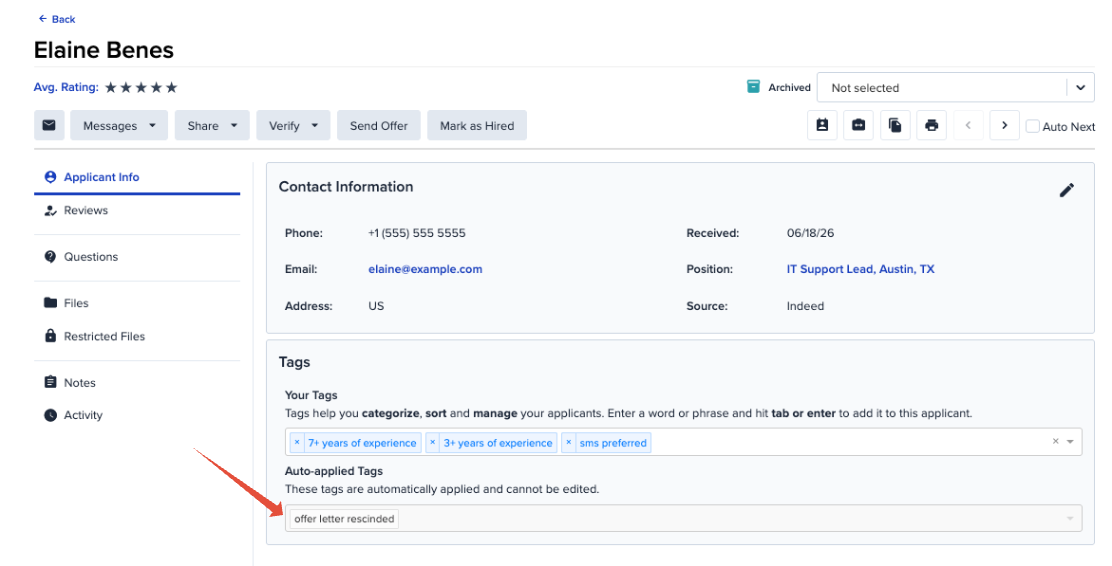
- You'll also note a new "Offer Letter Rescinded" tag on their applicant profile.
FAQs
What if the Offer Letter is still pending approval?
The Rescind option will not appear for an offer letter that has not yet been sent, which is the case for all pending approval. Please simply have the hiring manager who is designated to approve the offer letter Reject that approval to stop the offer letter from being sent out.
Will the applicant know I've rescinded the offer?
Yes. The message you customize in the Rescind form is sent automatically the moment you click Rescind Offer. There's no separate notification step to remember.
What happens if the applicant tries to access the original offer letter link?
They'll land on a page letting them know the offer letter link has expired. This is expected, and it's a good idea to check in on their applicant profile messaging in case they reach out with questions.
What if the applicant has already signed the offer letter?
Once an offer has been signed, the Rescind option will no longer appear in the Offer Letter flow — everything else about the offer will look the same, but that option drops away. If you need to walk back a signed offer, you'll need to reach out to the applicant directly. We'd also recommend looping in legal counsel before making any changes to a signed document.
What if the offer letter is still Pending approval and hasn't been sent yet?
This is a separate process from the Rescind feature above. If an offer is awaiting approval, you (or the approver) can reject the approval request directly from the approval email. You'll also have the option to add a note explaining the reason for the rejection.
Can I delete the offer letter from the Restricted Files section?
No — the offer letter is part of the applicant's permanent record. As a general rule, consult an attorney before removing any part of an applicant's file.
Rescinding an offer doesn't have to feel like defusing a bomb — with this feature, it's just a few clicks and one honest message to the applicant. If you run into anything unexpected along the way, our support team is always happy to help you sort it out.
