
Got a pile of applicants and a need to slice through them fast? Good news: filtering just got a serious upgrade with our new Pipeline View. Whether you're hunting for top-rated candidates, narrowing things down by job, or just trying to see who applied last Tuesday, the new filter drawer puts everything you need in one tidy place. Let's walk through it.
Step 1: Open the Filter Drawer
- From your Applicant Grid, look to the left side of the screen and click Filter.
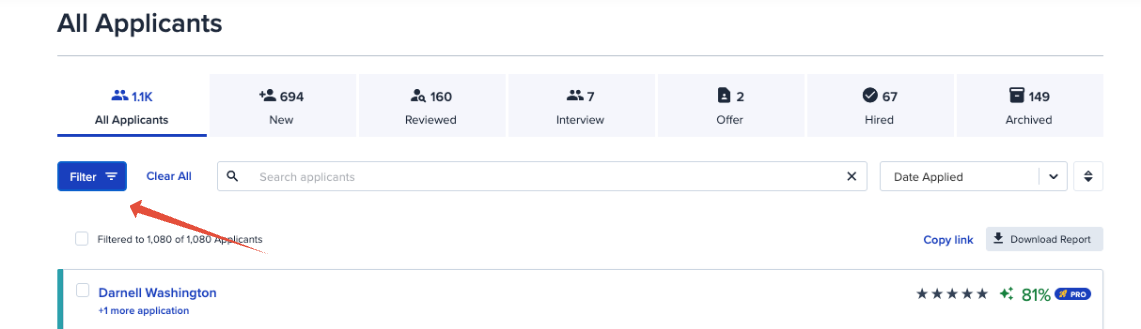
- This opens a drawer panel with all your filtering options in one spot — no more hunting around the toolbar.
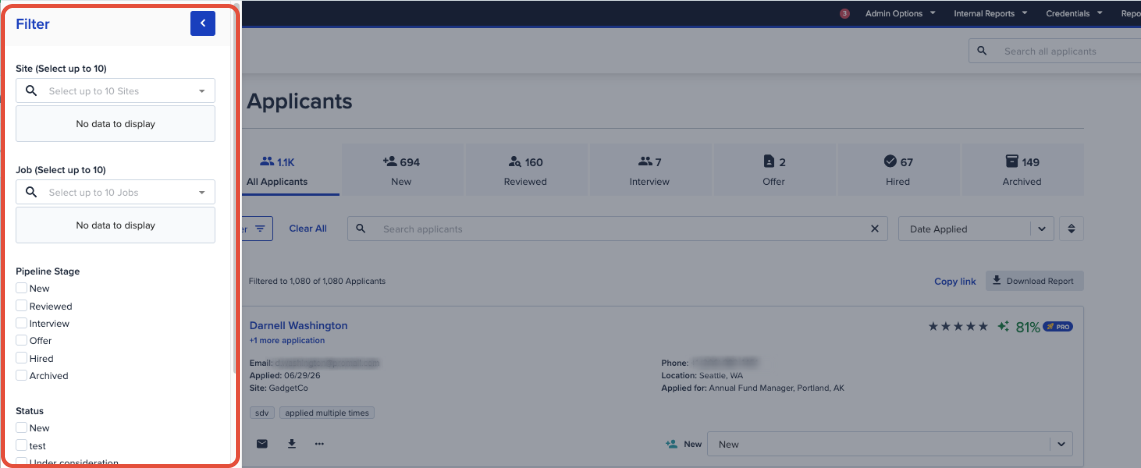
Step 2: Choose Your Filters
You can mix and match any of the following. Check as many boxes (or fill in as many fields) as you need:
- Site— Filter by up to 10 sites.
Only visible if Multisite is enabled on your account.
- Job— Filter by up to 10 jobs.
Only available when you're viewing the All Applicant Grid.
- Pipeline Stage — Check all the stages you want to include (for example, Interview or Offer).
- Status — Check all applicable statuses.
- Tag — Filter by up to 10 tags.
- Source — Filter by up to 10 sources.
- Rating — Check all applicable ratings.
- AI Ranking (%) — Enter a minimum and maximum percentage to narrow by ranking.

- Applied After / Applied Before — Enter a date range for when applicants applied.
- Hired After / Hired Before — Enter a date range for when applicants were hired.
Your Applicant Grid updates instantly to show only the applicants matching your selections.
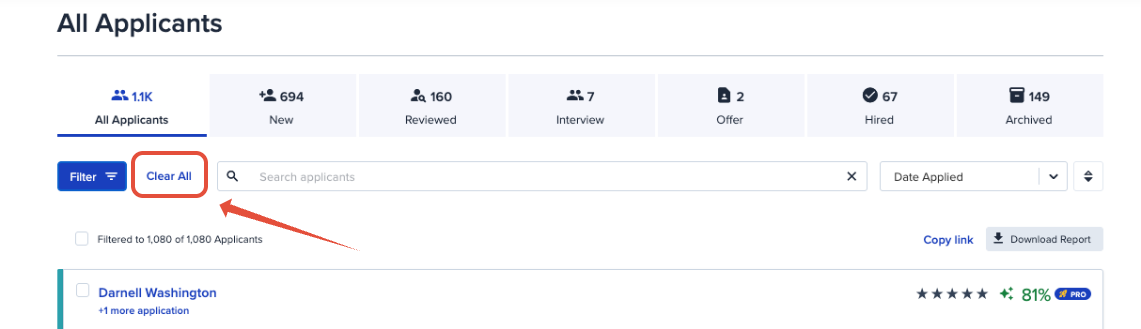
- Want to start over? Use the Clear All option to wipe your filters and begin again.
A Quick Note on Status
Every applicant now automatically receives the top status in your New Stage as soon as they apply — so you'll never end up with a mystery batch of status-less applicants. That means the Status filter will always have something to catch, right from the moment someone hits submit.
A Few Tips
- Pipeline Stage and Status are separate fields, so use whichever matches what you're actually trying to find — Pipeline Stage for where someone is in your process, Status for the specific label they've been given.
- Combining filters (say, Pipeline Stage plus a date range) narrows your results fast, which is handy when you're managing a high-volume role.
- If your filtered list looks empty, double-check you haven't accidentally combined filters that contradict each other (like a Hired Before date that's earlier than your Applied After date).
Thanks for taking the time to get familiar with filtering. If anything's not behaving the way you expect, our support team is always happy to help you track down exactly the applicants you're looking for.
Happy hiring!
